The app
In your pocket, on the desk, on your wrist
One app, built for three places: iPhone for the day and the session, iPad for the calendar and the record, Apple Watch to start and mark without touching a screen. Same key, same clinic, same rules — and nothing on any of them that can be read without Face ID.

iPhone
The day, the session, and what needs doing right now
The iPhone is the one you carry. It has to do three things without you thinking about it: show who is coming, start the session, and let you do what needs doing around an appointment — without digging through menus. Everything else has been moved to the iPad and the desk, deliberately.

Today: one tap, and the session is running
The Today tab shows the day’s appointments in order, the next one highlighted, with time, name and a small dot that says whether the client has consented to recording. Start session is one tap. If consent is given — and it is taken once, on the client’s card, not every time — recording begins immediately, and the button says so, so no one is in doubt. The same in the video call: if the person let in is the appointment’s client, the recording starts by itself, and she sees it on her screen and can stop it. Every appointment carries the ways that exist as small buttons of their own: the camera opens the video call, the record mark starts audio and transcript in the room, and the film camera starts the recording with video — the last only where the client has said yes to video. In the calendar the button sits right after the time on every appointment, today and onwards, so the session can be started wherever you are looking — all three on iPad, and on the phone the one that matters (recording or the call), with the rest a long press away.
- The recording lives on the phone, and speech becomes text on the phone. The audio never leaves it.
- When the session ends, the system writes a draft note in the clinic’s own template — ISTDP, CBT, MBT or your own — grounded in your own sources. The draft is approved or corrected; it never locks itself.
- A client without consent gets a session without recording, and the app says so before you tap. There is no way to record «by accident».
- The note, the transcript and the marks belong together: a passage in the note can be clicked back to the place in the session it came from.
The appointment: everything on one screen, not three
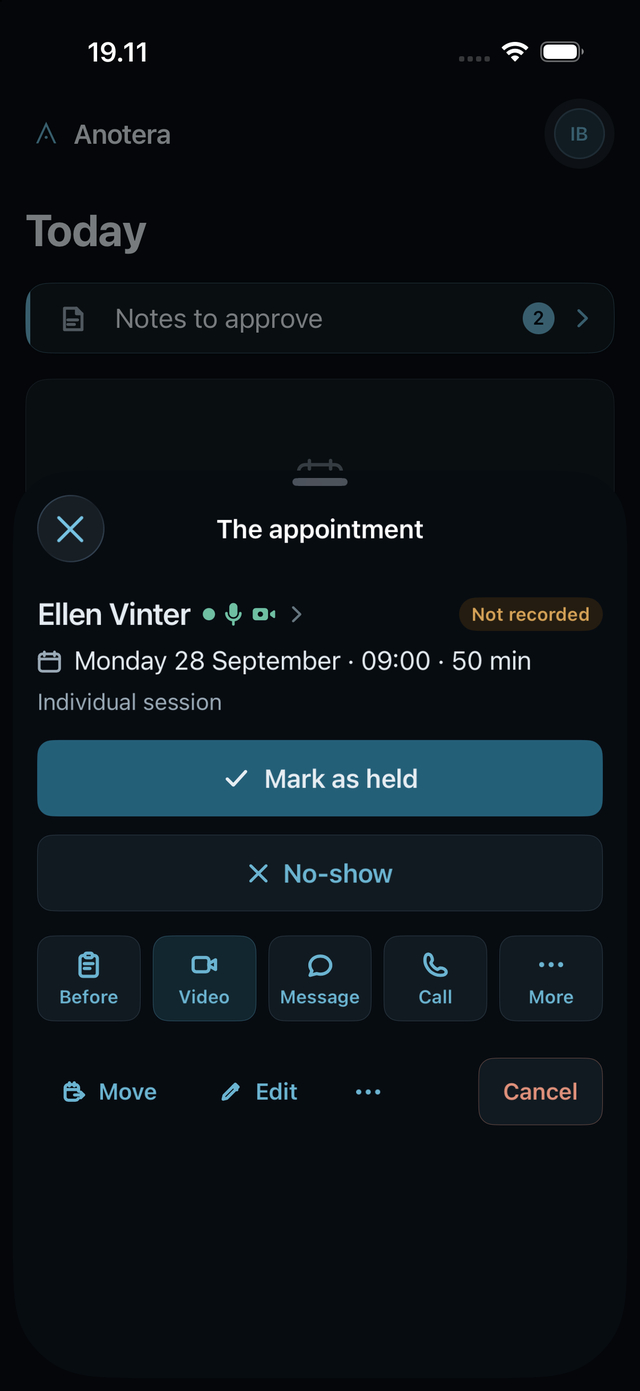
Tap an appointment and you get one sheet that never needs scrolling. At the top: who, when and what. Then the single filled button: Start session. Below it a row of round buttons with one word under each, the way iOS does it on a contact card — the eye finds the shape, the word removes the doubt.
- Before opens the board before the session. Video opens the video meeting or turns the appointment into one.
- Link sends the video link to the client by SMS, e-mail or as a message in the system — you pick the channel, and it is sent. No «are you sure».
- Message, Call and SMS go straight to the client. The number comes from the card; you never type it.
- At the bottom, what changes the appointment: Move, Edit, To video / To in-person — and Cancel, which is red because it is the only one you cannot undo with a tap.
- Afterwards: Attended or No-show, one tap, and the figures add up.
- Dark mode follows the phone. Every colour is drawn for both — not inverted.


During the session: one screen, one glance
The phone lies on the table. She looks at it two or three times in an hour, each time with one question. So the screen during the session is only that: the clock, largest — time used and time left of the planned session — two quiet states that say whether it is transcribing and whether it is marking right now, the last lines of the transcript so she can see the words arriving, and who comes next. At the bottom, the one button there is.
- The time and the appointment at the top; no navigation bar, no way out by accident — only the stop button, and it asks once more.
- The ring around the red button is the time: it fills as the session runs, and turns gold when the time is over.
- The transcript is a window of seven lines — the newest words at the bottom, the oldest fading away. It is there to be seen, not read; the whole transcript waits afterwards, in sections.
- Marking is yellow while it marks — set from the watch with Double Tap, or with one tap here. The number is the count of marks in the session.
- The screen does not sleep while recording, and the audio never leaves the device.


The record, the way you need it five minutes before
Before the session is a board: the last note, what you agreed last time, the client’s latest questionnaires and what has happened since — messages, a moved time, a cancellation. It reads in three minutes in the waiting room, and you walk in with the thread in hand.
- The client’s card has the same row of actions as the appointment: Message, Call, SMS, Course and Relations. Same shape in the same place, throughout the app.
- Course is the timeline: every session, every questionnaire, every letter — and a summary per month.
- Relations is the diagram of the people the client talks about, drawn from the record and corrected by the psychologist.
- Referrals and authorisations with sessions counted, guardians with consent, certificates and letters with limits on what they may say — all on the client’s card.
- Questionnaires: WHO-5, PHQ-9 and GAD-7 are sent to the client with one tap and come back as numbers on the timeline.


Nothing that can be read by whoever finds the phone
The app locks itself when you leave it, and opens with Face ID or a code. The encryption key lives in the phone’s secure enclave and never leaves it. The record is fetched when it is to be read, and is not stored on the phone afterwards.
- Messages is the clinic’s own channel to the client: a thread per client, with a receipt that the message arrived and was read. Not SMS, not e-mail — unless you choose them.
- The app knows what it runs on: if the iPad has no lock, it says «the iPad», not «the phone» — and it says so before you open a record.
- There is nothing to export from the phone. Exports are made at the desk, where they are logged.
- One language per file: Danish, English and Italian, chosen in the app, independent of the phone’s language.
iPad
The calendar and the record, with room to work
The iPad is the desk when you are not sitting at one. Same app, but the screen is large enough for the calendar and the appointment to sit side by side, and for the record to be read as a document rather than a phone scroll. Today has the list on the left and the next appointment open on the right — with Start session and the whole row of actions, without a tap first.

The week you can paint in
The week calendar shows opening hours, breaks and appointments, and it is driven with two fingers: two fingers scroll, one finger paints a new appointment into the free slot. So you are never in doubt whether you are moving the calendar or booking.
- A new appointment first asks what it is — client, block, other — and then only about what is needed.
- Recurring appointments: every week, every second, third or fourth week, or the same weekday every month — for a number of times, until a date or until further notice. Clashes are shown before anything is created; one occasion can be moved or cancelled on its own or as «this and all future ones», and the client gets one confirmation for the whole series.
- The appointment opens as a sheet over the calendar, in the same shape as on iPhone. What you learned in one place holds in the other.
- Several clinicians, several calendars, one week.
- Opening hours and the break after each session are set once and apply to booking on the website.

The client’s card, readable at arm’s length
Details, course, referral, consent and payer on one screen. The actions sit as on iPhone, in a row under the name. The timeline and the relations diagram open beside it, not on top.
- Consent to recording is taken here, once, with the date and who took it. That is why Start session afterwards is one tap.
- The client’s questionnaires, letters, certificates and authorisations — the same lists as at the desk, the same rules.
- No client with a record can be deleted. You close a course instead.


The clinic writes its own consent form
Under Clinic › Setup › Consent form is the form the client answers: six standard points that hang together as they do in reality — the AI note under recording, supervision and teaching under video — and the clinic’s own. The clinic chooses which are included and what they say. Sent as a link, the client signs with a finger on her own phone; “Sign here” hands the iPad across the table instead. Both ways end in a consent form as a PDF on the client’s card, signature included, and the client gets her own copy. A tap on the form shows the PDF; “⋯” shares it — Mail, Messages, AirDrop, Files, Print — or sends the client a copy again from the clinic’s e-mail. When the consent is about to turn two years old (the deadline follows the clinic’s country), the app says so a month before, and “Update consent” sends the form again.
- Nothing is ticked in advance. The client answers yes or no to each point herself, and a no is saved just as fully as a yes. “Not asked” is not the same as no.
- Ask about what is missing. On the card each point stands with its answer — Yes, No, Not asked or Waiting for an answer. A tap on “Not asked” opens the sheet with just that point. Ticks choose several: the points the client has not been asked about are ticked in advance, and “Ask about the chosen points” sends only those. The client sees only the chosen points — and what they rest on, if she has not said yes to it — and her earlier answers still stand.
- Six standard points — storage of the record, recording, notes drafted with AI, video recording and the video’s two purposes, supervision and teaching — and up to twelve points the clinic comes up with itself, such as text-message reminders. All can have the clinic’s own wording, and all six are included from the start, video too. Storage is always included; the others can be switched on or off, and a point can only be included when what it rests on is: switch video off, and supervision and teaching go with it. A point can require an answer — yes or no — in forms sent as a link.
- If the client has said no to recording, a yes to video or teaching cannot be saved — the service enforces it, not just the screen.
- Change the wording tomorrow and it only applies to forms sent afterwards. Sent as a link, the words the client read are saved together with her answer.
- The preview shows the saved form as an adult client sees it on the link. The same form is built in the app and in the console on the website.
- If the client is under 15 (the age in Denmark — or you have judged that a young person cannot manage it alone), an adult with parental authority answers, and the form goes to that adult’s own phone or email — not the child’s. A no can always be noted. This requires the date of birth to be on the client’s card.


Specific consents: when something is going to someone else
When a statement is to go to the municipality, a status report to the doctor or a description to the school, you ask the client first — every time. A specific consent covers one recipient and one occasion, and it expires on its own: by default 30 days, 180 at most, counted from the day the consent is given (for paper, from the date on the paper).
- You choose the recipient and write what is being shared and, optionally, why — and the text the client reads appears at once, in the words she will actually see.
- Your own templates. At the top you choose a recipient or one of the clinic’s templates. The text can be adapted to the case at hand, and “Save as template …” keeps it for the next client — with its placeholders as they are, never with the client’s name or details. The templates live under Clinic › Setup › Consent form: new, edit and delete.
- Four ways to answer: a link to the number or email on the card; here in the room, on the clinic’s device; verbally; or on paper. A verbal yes is the weakest evidence, and the app says so when you choose it.
- A link sent to the wrong person can be withdrawn before it is answered. A no is saved just as carefully as a yes, and a newer no to the same recipient replaces an older yes.
- No valid consent, no letter. A letter to the municipality, the doctor or the school cannot be made until there is a valid consent for that kind of recipient — a specific consent or an older standing one. When a letter rests on a specific consent, it is marked “used” when the letter is made.
- Nothing is overwritten or deleted. Used, expired and withdrawn consents stay in the list with their status, and the service also records who gave the consent and, when it is noted in the clinic, who entered it.
- If it concerns a child under 15 (or a young person the psychologist has assessed in writing as unable to manage it alone), it is the adult with parental authority who gives the consent: “This is about Malte. You are giving this consent as Malte’s parent or guardian — Malte is not the one answering.” The link goes to that adult’s own phone or email — not the child’s. If no adult is on the client’s card, the consent cannot be created. This requires the date of birth to be on the card.


Running the clinic: figures, waiting list, services, invoices
Under Clinic is the clinic: key figures, waiting list, services and rates, payers and invoices, instruments, templates, recordings, calendars, opening hours — and the clinic’s API keys. The same screens as at the desk, drawn to be held in the hand.
- Figures: utilisation, no-shows, the funnel from enquiry to first session, length of courses, contribution margin per service — with an arrow for which way it is going.
- Waiting list that runs itself: a free slot is offered to the next in line, and she answers with a tap.
- Invoices with EAN and «danmark» reporting; receipts and credit notes; who pays when it is not the client.
- Automatic invoicing: one rule per payer type — self-paying clients, insurance companies, municipality/region/state, other payers — says when a session that has taken place becomes a bill, and whether it becomes a draft or is posted: one invoice per client, one combined invoice per company, or only a statement for the companies that settle themselves. Nothing happens before the clinic has set a rule, and nothing is sent before «send» is switched on; what the automation does is written to a log. Built, not in service.
- Instruments and templates: the clinic’s own note templates and the sources the draft may build on.
- Recordings: what is there, and how long it stays.
- Moving in from EasyPractice/Terapeutbooking — or another system: clients, appointments and notes are fetched with the clinic’s own API key, which is deleted afterwards, or from export files. More on changing system.
Apple Watch
The watch: start and mark without touching a screen
The most important thing the watch does is not be a screen between the psychologist and the client. You should not have to take out a phone to start a session, and you should not have to write anything down to remember that something important just happened. The watch does both with a touch nobody notices.
Start the session from the wrist
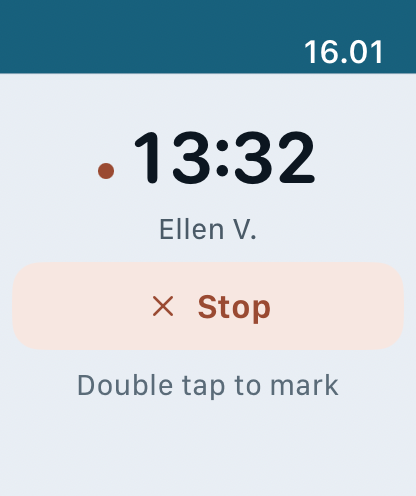
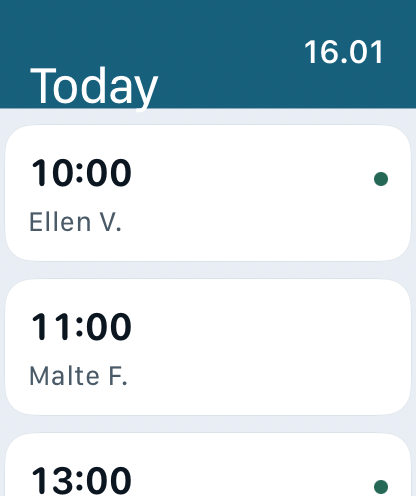
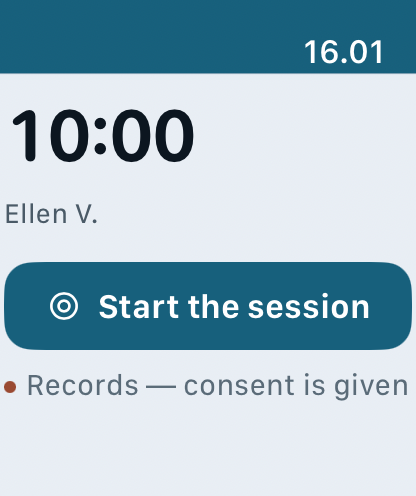
The watch shows the day and the next appointment. One tap on Start session, and the phone in your pocket or in the drawer starts recording. The button is only there when the client has consented on the card; if that is missing, the watch says so and points to the phone — a seven-line consent cannot be taken on 45 millimetres. During the session the face shows the time elapsed and a quiet red dot. Nothing more.
- The watch is a remote control. There is no key, no record and no transcript on it. Lose the watch and you have lost a watch.
- Names are shown short — «Ellen V.» — and only for the day’s appointments.
- The phone need not be in your hand. It can lie in the bag with the screen off; the watch talks to it anyway.
- If the phone is not nearby, the watch says so instead of pretending.
- If the iPad sits on the table in the therapy room, it can be the one that records: a short press starts on the clinic’s default device (phone or iPad, set in the app), a long press lets you choose — and the watch shows which device answered.
Double tap: mark the spot — without touching the watch
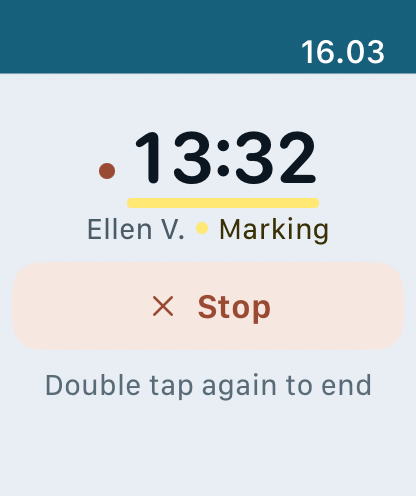
In the middle of a session something happens that you will want to look at again: resistance rises, the client disconnects, something breaks through. You cannot stop and write it down. So you tap index finger to thumb twice — Apple Watch’s Double Tap — and from that moment the session is marked. Another double tap closes the mark. There can be as many marks in a session as you need. There is no button to find and no crown to turn: nothing happens by accident, and the client sees nothing.
- A mark is time, not a judgement: from second 812 to second 934. You know something is happening without having to say what yet.
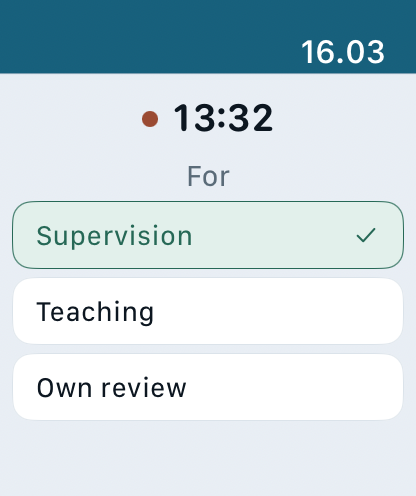
- When the mark closes, the watch asks for ten seconds: Supervision, Teaching or Own? One tap, or leave it — then you choose afterwards.
- The marks land in the transcript and in the video, if there is one. In supervision you jump straight to the spot — in the text or in the film — instead of scrubbing.
- The watch confirms with a small haptic, so you feel that it took without looking. The screen shows only the state — a yellow highlighter line under the time while marking. There is no button.
- Set from the watch or from the screen — that is stored, so you can see where a press came from. For nothing else.


The transcript in sections — the marked ones yellow and open
An hour is 8,000 words. Nobody reads them from one end, and nobody has to. Afterwards the transcript is in sections: what was marked is its own section — yellow, expanded, with time and purpose — and the rest is folded behind its first line. At the top, a list of the marks that jumps straight to each.
- Same sections, same numbers on iPhone, iPad and the desk. «Section 7» is section 7 everywhere — in supervision too.
- Search the transcript and the matching sections unfold. Expand all when you want to read; collapse when you want to find.
- Marks carry the time in the session and jump to the spot in the video, if there is one.
- The transcript is the source: if the note says something you cannot recognise, this is where you look.
Tags
A theme on the session — so it can be found again
A mark says when. A tag says what. After the session the psychologist puts the clinic’s own themes on it: high resistance, fragility, dissociation, cognitive dissonance, breakthrough, somatisation, transference. The list is free; the clinic makes it, and the built-in ones are only a place to start.
- For supervision: «find me a place where I worked with high resistance and the patient dissociated». The search runs across clients or within one, by tag and by purpose, and answers with cases — date, client, tags, how many marks, how long — not with content. The case is opened afterwards, and there there is access control and a trail.
- For teaching: marks with the purpose Teaching are collected separately, so a run of examples can be found for a course day — pseudonymised, as the supervision sheet always is.
- For your own review: what you want to see again yourself, without it having to go to anyone else.
- The supervision sheet is always built without names. If a name slips through, the server refuses to make the sheet — and logs it.
That is what the watch, the double tap and the tags are for: so that what happened in the session can be found again in three months, when memory is gone — without anyone having written anything down in the meantime.
And all of it
One clinic, wherever you open it
- Video meetings in the app — the session can be recorded and marked like an in-person session.
- Messages with receipts, SMS and e-mail from the same button.
- Reporting to Sygeforsikringen «danmark» and invoices with EAN.
- Questionnaires, letters, certificates and authorisations.
- The open API, with the same routes as Terapeutbooking — the documentation is at /api/, and the keys are made in the app.
- Danish, English and Italian — a new language is one file.
The app is built and runs in one clinic. It is not in the App Store yet; clinics with early access get it through TestFlight. Every part of the system, with status · Early access.
What the app keeps on the device, what it sends, and which permissions it asks for: Privacy in the app.